e-Banking
GUIDE TO LOOKING UP AND DOWNLOADING E-INVOICES
INTRODUCTION
This document provides detailed instructions on how to look up and download e-invoices through NCB Bank’s system. Customers can access their invoices quickly and easily through the lookup methods described below.
BASIC CONCEPTS
1. Customer: A customer who conducts transactions at NCB and has transactions for which invoices must be issued in accordance with tax regulations.
2. Username: The customer’s CIF number, consisting of 08 digits, issued by NCB when the customer’s account is opened.
3. Lookup code: A character string automatically generated by the system and assigned to each invoice when it is issued by NCB to the Customer. The lookup code is used for the purpose of downloading invoices to your computer via NCB’s e-invoice lookup website.
SYSTEM REQUIREMENTS
To use the e-invoice lookup service, you need:
- Web browser: Chrome, Microsoft Edge, or Firefox (latest version)
- Internet connection: A stable connection to access the website
- Login information: Username (CIF number) and password (if looking up multiple invoices)
Lookup website address: https://www.ncb-bank.vn/hddt
DETAILED INSTRUCTIONS
METHOD 1: LOOK UP INVOICES BY LOOKUP CODE (NO ACCOUNT REQUIRED)
Step 1: Access the Website
Open a web browser and access the link: https://www.ncb-bank.vn/hddt
The homepage interface will display a simple lookup form.
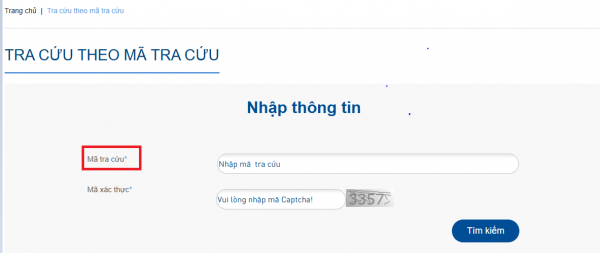
Step 2: Enter Lookup Information
In the lookup form, enter the following information:
- Lookup code: Enter the invoice lookup code (the character string issued by NCB’s invoice system)
- Verification code: Enter the displayed verification code
- Click the “Search” button
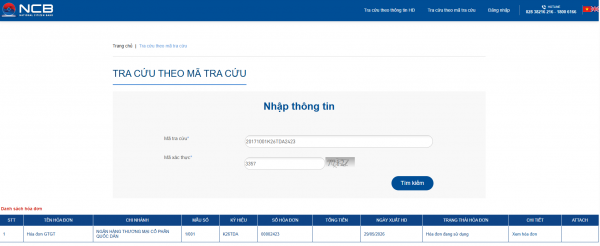
Step 3: View Results
The system will display a list of invoices matching the lookup code. To view invoice details:
- Click the “View invoice” button on the invoice you wish to view
- The invoice detail interface will display all relevant information
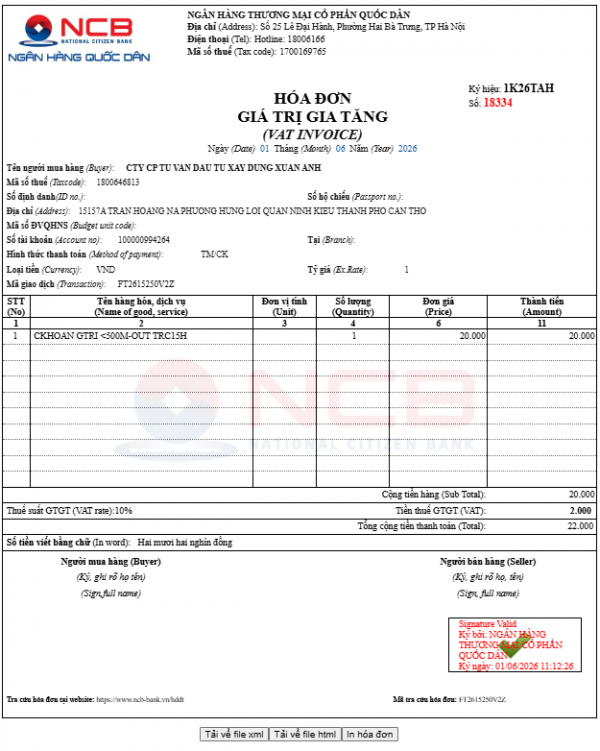
Error Handling: If the lookup code is incorrect, the system will display the message “Invoice does not exist” in the upper right corner of the interface. Please check the lookup code and try again.
METHOD 2: LOOK UP MULTIPLE INVOICES (FOR CUSTOMERS WITH AN ACCOUNT AT NCB)
This method allows you to look up all your invoices issued within the past 01 year. You need to have an account at NCB to use this feature.
Step 1: Log In
- Access the website: https://www.ncb-bank.vn/hddt
- Enter your Username (CIF number) in the corresponding field
- Enter your Password in the password field
- (Optional) Select “Save password” if you want the system to remember your login information
- Click the “Log in” button
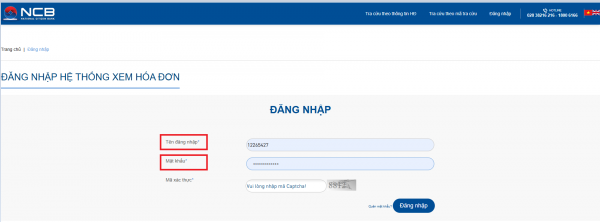
Login Verification:
- If the information is correct: You will successfully log in to the system
- If the information is incorrect: The system will display an error message. Please check your username, password, and verification code, then try again.
Forgot Password?
- Click “Forgot password” on the login interface
- Enter the email address registered for transactions with NCB
- Click the “Save” button for the system to send a password reset email
- Check your email to receive the new password
- If you want to go back, click the “Back” button
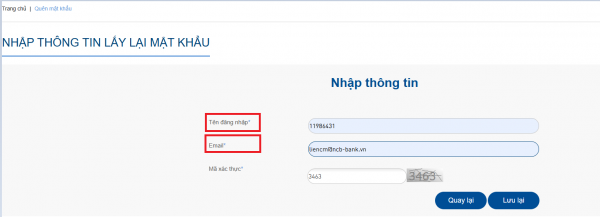
Step 2: View the Invoice List
After successfully logging in, you can view the list of all your invoices:
- Select the “Invoice information” menu from the main interface
- Filter the invoice list by the Month/Year in which the invoice was issued
- The system will display the corresponding filtered results
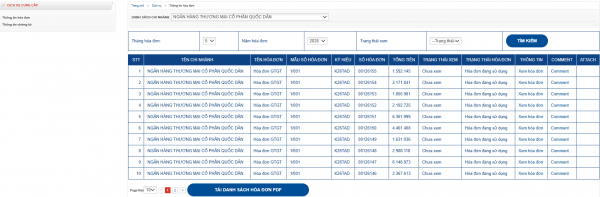
Note: You can look up invoices issued within 01 year from the current date, arranged by month.
Step 3: Download Invoices
On the invoice detail viewing interface, you can perform the following tasks:
- Download invoice XML file: Download the invoice in XML format for use in accounting applications
- Download invoice HTML file: Download the invoice in HTML format for viewing in a browser
- Print invoice: Print the invoice directly from the browser
- Download invoice list in PDF format: Select multiple invoices and download a PDF file containing a list of all selected invoices

SUPPORT AND CONTACT
If you have any questions or issues related to e-invoices, please contact NCB via:
|
Contact Channels |
Thông Tin |
|
Hotline |
028 3821 6216 / 1800 6166 |
|
Support Email |
USAGE TIPS
- Save the lookup code: Save the lookup codes of important invoices for future lookup
- Check your email regularly: If you forget your password, check your email to receive the new password
- Use a supported browser: To ensure the best experience, use Chrome, Microsoft Edge, or Firefox
- Account security: Do not share your username and password with anyone
FREQUENTLY ASKED QUESTIONS
Q: THow far back can I look up invoices?
A: You can look up invoices issued within 01 year from the current date.
Q: What can I do if I forget the lookup code?
A: You can log in to your account and view the list of all invoices. If you do not have an account, please contact NCB for support.
Q: In what formats can I download invoices?
A: You can download invoices in the following formats: XML, HTML, PDF.
Q: Can I change information on an e-invoice after it has been issued?
A: No, according to tax invoice regulations, you cannot change any information on an invoice after it has been issued. If an error is found on the invoice, you need to contact NCB to be issued an adjusted invoice or a replacement invoice.
Q: Is the system secure?
A: Yes, the system uses standard security measures to protect your information. Please do not share your login information with anyone.